Showing posts with label JMeter. Show all posts

Sunday, October 14, 2012

Tip #16: How to save test results - part 2

In the previous part I wrote how to save the testing results using Simple Data Writer. There is one more way about how to do it - using the command line options.

So, if you want to run the test plan from file test.jmx and save the testing results to the file log.jtl, use the following command:
jmeter -n -t test.jmx -l log.jtl
You can configure how the result data will be saved by editing the file jmeter.properties (section "Results file configuration"). For example, if you want to save the results in CSV format you should edit the following property:
jmeter.save.saveservice.output_format=csv
This way is more powerful than the one described in the previous part (Simple Data Writer) because it allows you to set some additional options like CSV delimiter, timestamp format, etc. Sometimes it could be very helpful.

Wednesday, July 25, 2012

Tip #15: Hacking the response data size limit

View Results Tree is very useful listener especially when you are debugging your test plan. You can review the response data and ensure that your test plan works good. But sometimes you you can see a message in the beginning of the response data like "Response too large to be displayed. Size: 313674 > Max: 204800, Start of message:".

JMeter - Response too large to be displayed

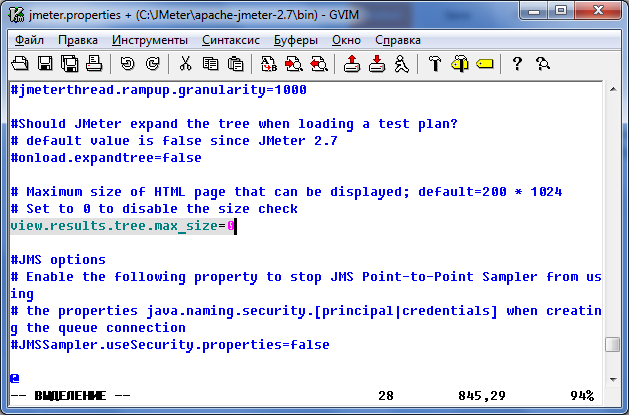
And unfortunately you are not able to see the whole response data. By default JMeter shows only first 200 Kb of response data. To resolve this problem you should edit the file jmeter.properties and uncomment the line:
view.results.tree.max_size=0
 This will disable response data size check at all.

Uncommented view.results.tree.max_size=0

After you have saved jmeter.properties you will never see this message again.

The problem with the response data size limit has been resolved.

Saturday, December 31, 2011

Tip #14: Advanced test plan structure

Working with JMeter for about 2 years I've come to the optimal (for me) structure of the test plan. It's divided into several suites (thread groups) depending on user type (visitor or signed in user, etc.) and is quite large to simulate real user activity. Complex business operations can be grouped using Simple Controller for better readability of the test plan. Also do not forget about pauses.

Here is an example test plan structure:


Thread Group - Visitor Suite
  Simple Controller - Homepage
    Transaction Controller - Homepage
      HTTP Request Sampler
      ...
  Random Order Controller
    Simple Controller - News page
      Transaction Controller - News page
        HTTP Request Sampler
        ...
    ...
Thread Group - User Suite

  Simple Controller - Sign In page
    Transaction Controller - Sign In page
      HTTP Request Sampler
      ...
  Random Order Controller
    Simple Controller - View User Profile page
      Transaction Controller - View User Profile page
        HTTP Request Sampler
        ...
    ...

Tuesday, October 26, 2010

Tip #13: Checking for empty variable using IF controller

Sometimes you need to add HTTP samplers with dynamic URL or with dynamic part of the URL which are stored in some variable after HTTP sampler post-processing.


But if Regular Expression Extractor will not find any matching string result variable will be set to default value (empty value in our case). We should test this variable for emptyness before we will use it.


Now if the News page has not any news we are sure that JMeter will handle this situation correctly.

Wednesday, June 2, 2010

Tip #12: How to add HTTP Request sampler with dynamic URL

If you need to add HTTP Request sampler with dynamic URL that can be different each time from testing to testing you must use one of the Post-Processors offered by JMeter. I usually use Regular Expression Extractor for this purposes.

So, let's imaging that you have "Popular News" web page which contains the links to "News Story" web pages that contains the full texts of news and you want to write a test which will include both "News" page and random "News Story" page.

For this you must include "News" page HTTP Request sampler inside Simple Controller with a Regular Expression Extractor to store random "News Story" page URL to a variable:


Then use the variable with the stored random "News Story" page URL in "News Story" HTTP sampler:

Tuesday, March 23, 2010

Tip #11: Template for JMeter's recording proxy

If you often need to use JMeter's recording proxy you can save your time by using templates for HTTP request filtering. Just add HTTP Proxy Server element to Workbench, than add regular expressions for URLs of your site like www\.example\.com.* to "URL Patterns to Include" list, add regular expressions for exclusion of some static HTTP requests like .*\.css$ to "URL Patterns to Exclude" list and save this template using "Save Selection As..." item of HTTP Proxy Server's context menu.


Next time you can just open this file in JMeter and you will have ready for work recording proxy.

Sunday, March 14, 2010

Tip #10: How to add authentication to Test Plan

Most of websites have user communities and allow users to do some actions like posting comments if they are authenticated on this website. Often the performance of a web page can be quite different depending on that fact if this page was visited by authenticated user or anonymous one. So we need to test theese pages by both anonymous users and authenticated ones. How to add authentication is described below.

The steps are mostly similar to the steps of adding website search but have some small differencies.

First record HTTP/HTTPS requests going to authentication page with login/password form in your browser and submitting this form. You will get Authentication Form Page and Authentication Process transactions. Then you need to replace login and password parameters values by some variables like ${USER} and ${PASSWORD} on Authentication Process HTTP request settings.


After that you need to prepare the text file where each line contains username and password separated by some delimiter character, e.g., comma and add new CSV Data Set Config element like below.


And now all next HTTP requests will be performed by authenticated users.

Thursday, March 4, 2010

Tip #9: Testing website search

Almost every modern website has search feature and it must be carefully and thoroughly tested. You will know from this post how to do it using JMeter.

First record necessary HTTP requests (including search page and search results page) using JMeter's recording proxy and group them into separate transactions.


Then go to HTTP Request sampler which corresponds to search results page and replace the keyword (which you used during recording) with some variable name, e.g., ${KEYWORD}.


Then prepare the list of keywords you want to use for search testing, save them to the text file and add CSV Data Set Config element to Thread Group. Specify the name of just created file and the variable name which will contain your keywords from file, e.g., KEYWORD (see above).


Now you are ready to test the search on your website.

Thursday, February 25, 2010

Tip #8: How to save test results

There is a possibility to save JMeter test results to xml or csv file for further work (e.g. generating reports, importing to a database, etc.). It can be easy done by adding Simple Data Writer listener to a Thread Group and specifiing the filename. Of course you can specify the filename as JMeter variable or property.


You can choose the format of results file (xml or csv) and the fields to be saved clicking on Configure button and checking necessary options. As for me I prefer xml format and default options except Save URL which is useful when I need to know exact URLs of HTTP requests.

Friday, February 19, 2010

Tip #7: How to add cookie support to your Test Plan

If you want JMeter to handle cookies automatically you need to add HTTP Cookie Manager to Thread Group.

Be sure that Cookie Policy option is set to "compatibility" value, it will work in most cases. As for "Clear cookies each iteration?" checkbox I always check it and never had the situation when I was need it to be unchecked.

Friday, February 12, 2010

Tip #6: How to do the Test Plan more flexible using variables and properties

JMeter's variables and properties can do your Test Plan very flexible and prevent you from frequent modifications of the Test Plan. Just add the most frequently used options as variables on the Test Plan page and specify their values using "__P" function as on the screenshot below.


As you can see Test Plan can be executed with default values and at the same time if you need to modify some options you can pass them to Test Plan through the command line without the modification of the Test Plan.

Wednesday, February 3, 2010

Tip #5: How to run a test plan for a certain amount of time

If you want to run your Test Plan for a certain amount of time instead of a certain amount of iterations you can do it in two ways:
  • by specifiing testing duration on the Thread Group GUI (Scheduler checkbox must be checked). Note that you must specify the value of Startup delay option as zero otherwise you will need to specify Start Time option value before each test running. And of course you need to check Forever checkbox of Loop Count option. There is 10 minutes test example on the screenshot below.

  • by creating extra Thread Group with two Test Action samplers. The first Test Action configured as pause, and the seconf one is configured to stop all treads. Look at the screenshots below for 10 minutes test example.


    Thursday, January 28, 2010

    Tip #4: Using JMeter properties

    Sometimes I need to modify some parameters in the Test Plan and it requires me to start JMeter, open the Test Plan file and edit these parameters there. But it's better to use JMeter properties for this task. Look at the image below.


    There are JMeter properties used as values of "Number of Threads (users)" and "Loop Count" options: ${__P(users)} and ${__P(count)}. Also we must add two parameters to JMeter command line:

    jmeter -t TestPlan.jmx -Jusers=10 -Jcount=50

    Now you can specify necessary parameters on the fly. I recommend you to use properties for the following options: number of users, loop count, host, port, results and data filenames, etc.

    Thursday, January 21, 2010

    Tip #3: Pauses in test plan

    For complete user simulation you need to add pause after each transaction. In most cases you will use only two types of pauses:

    1. Add constant pause to test planConstant pause. Just add Test Action controller after the Transaction controller. Specify the pause duration in ms and be sure that "Pause" item of "Action" option is checked.

      Constant pause options
    2. Add variable pause to test planVariable pause. Add Test Action as described above but specify the pause duration as 0 (zero). Then add Uniform Random Timer as a child of Test Action and specify the minimum value and maximum offset value.


    Wednesday, January 6, 2010

    Tip #2: Basic web test plan structure

    The best practice is to group logically related HTTP requests to transactions using Transaction controllers. As the result you will get not only response time values of HTTP requests but response time values of the whole transactions too.

    Thread group
        Transaction controller 1
            HTTP Request 1
            HTTP Request 2
            ...
            HTTP Request N
        Transaction controller 2
            HTTP Request 1
            HTTP Request 2
            ...
            HTTP Request N
        ...
        Transaction controller N
            HTTP Request 1
            HTTP Request 2
            ...
            HTTP Request N

    Thursday, December 31, 2009

    Tip #1: How to record HTTPS requests by JMeter's recording proxy

    If you ever tried to record HTTPS requests by the recording proxy of the lastest stable version of JMeter (2.3.4) you know that it's impossible. And HTTPS spoofing option can not help in the most cases.

    I investigated this problem and found interesting thing. There is already a bug 47622 in JMeter's Bugzilla that already has RESOLVED FIXED status. Some guys added a patch and fake SSL certificate to JMeter so it allows to record HTTPS requests now. But you must use developer (nightly) build instead of stable release until this bugfix is added to next stable release.